Classifying inventory and optimizing stock levels with Dynamics 365 Business Central

Stock classification is essential for effective inventory management. By grouping stock items based on their value to your business, you can prioritize which items to stock or not stock and in what quantities. It can also help you focus your time, in terms of analysis, forecasting, and ordering, on the groups that are most important to the business.
Ultimately, stock classification is a valuable tool for ensuring you’re carrying the correct levels of each inventory item and preventing over- or under-stocking.

In this post, we’ll examine the inventory classification functionality in Microsoft Dynamics 365 Business Central/NAV and explain how EazyStock can deliver additional capabilities.
EazyStock is an established inventory optimization app that can be found in Microsoft AppSource. With our ready-made connector, it’s easier than ever to integrate EazyStock with Business Central to provide advanced inventory management capabilities. In previous posts, we’ve examined demand forecasting and replenishment. In this one, we’re going to focus on inventory classification and stock level optimization.
ABC inventory classification and Business Central
Dynamics 365 Business Central uses ABC inventory analysis for inventory classification, a simple and widely used method for informing its stock management and reordering calculations. To use Business Central’s ABC analysis framework, you first need to categorize your stock items into groups based on similar characteristics manually. This is typically done in a spreadsheet.
Items are then grouped based on their value and volume relative to total stock. So ‘A’ items, which have a high value and are stocked in low volumes, are treated differently from ‘C’ items, which, conversely, are carried in high volumes and have a low comparative value.
Once your items are categorized, you then need to upload this information into your ERP and then assign a suitable reordering policy to each item. In Business Central, there are four reordering policies:
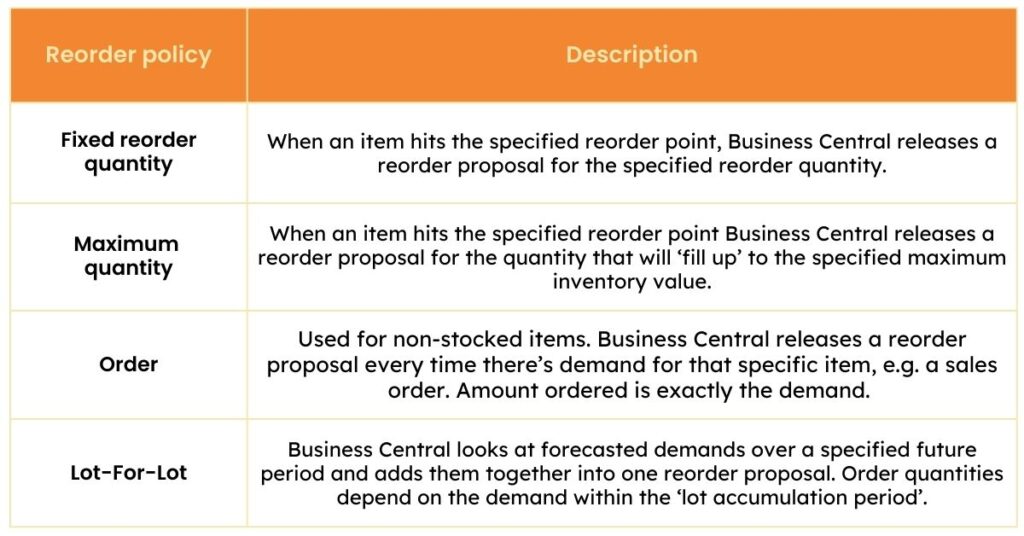
Each can be assigned to different ABC categories. For example, you may assign the ‘Order’ reorder policy to A items because they are more expensive and therefore stocked in smaller quantities, or assign the ‘Maximum Quantity’ reorder policy to C items that you’re happy to stock in larger volumes.
However, analyzing and classifying every inventory item is time-consuming for any inventory manager. Unfortunately, as soon as the information is calculated, it will become outdated because items can move between categories due to changes in demand or cost. This can then lead to the ordering of unsuitable levels of stock, resulting in stockouts or excess stock.
Dynamic inventory classification
In comparison, EazyStock’s inventory classification is much more advanced. EazyStock takes a daily feed from Business Central of demand profiles, stock levels, and items on order and in transit, and calculates stocking rules for every SKU. Instead of categorizing items into three groups, EazyStock includes a much wider range of classification variables.
- Demand types – as discussed above.
- The value of annual usage (VAU) of each SKU – this considers sales volume as well as the unit cost of the product.
- How often each SKU gets picked – this distinguishes high-volume products with many requests (1000 requests for 1 unit) from high-volume products with low requests (2 requests for 500 units).
- The demand volatility of each SKU – segmenting items based on their demand volatility and, therefore, how easy their demand is to forecast.
Adding these variables to the basics of ABC classification categorizes SKUs into more granular inventory matrices. These matrices can either be kept very simple or have over 200 segments, as shown below.

EazyStock then automatically applies stocking rules to set reordering parameters and ensure target service levels are achieved. Generally, this means items with consistent demand, high pick frequency, and low cost-to-sell will have higher stock levels to achieve higher service levels. Those that are expensive to stock, with low pick frequencies and more volatile demand, will be stocked in lower volumes with lower service level targets.
EazyStock dynamically moves items between categories and automatically updates stocking rules daily, as required. This automatically optimizes inventory levels, allowing for capital investment in the right stock and achieving healthy turnover rates.
Service levels and stock availability
Many businesses use service-level KPIs to measure stock availability or order fulfillment. Inventory service levels are directly linked to customer satisfaction. For example, if orders can be fulfilled entirely, then customers are more likely to be pleased with their service experience.
Unfortunately, most ERPs, including Business Central, lack the functionality to measure service levels and track this important KPI. With EazyStock, however, target service levels can be set and measured at product group or even SKU level. This allows businesses to monitor stock availability and its impact on customer satisfaction more closely.
In EazyStock, service levels are usually configured during system implementation and assigned to segments of the inventory matrix. So, if high service levels are required, EazyStock will automatically adjust stocking rules accordingly to carry more of the items, and vice versa. In turn, these stocking policies inform the reordering parameters, with reorder points, quantities, and safety stock levels automatically adjusted to ensure the right amount of stock is ordered.

Strategic decision-making – scenario planning
Many businesses struggle to predict the impact of improving stock availability or service levels on their cash flow, or conversely, how reducing stock investment might affect fulfillment. EazyStock, therefore, has the built-in capability to simulate such scenarios, removing any financial risk and helping you make informed decisions before changing your inventory policies.
Automating stock classification with EazyStock
For organizations with a large or growing number of SKUs, it’s critical to optimize inventory levels to manage operational costs and cash flow effectively. To achieve this, businesses need to understand the composition of their inventory and set policies that achieve high service levels with the least amount of stock.
EazyStock helps businesses make informed, data-led decisions about their inventory management. Whether you’re looking to increase turnover and free up capital or reduce stockouts and improve service levels, EazyStock has a wealth of features, in addition to Dynamics 365 Business Central, to help support your plans.
If you’d like to learn more about how EazyStock can support your inventory management operations, please contact our team today.